
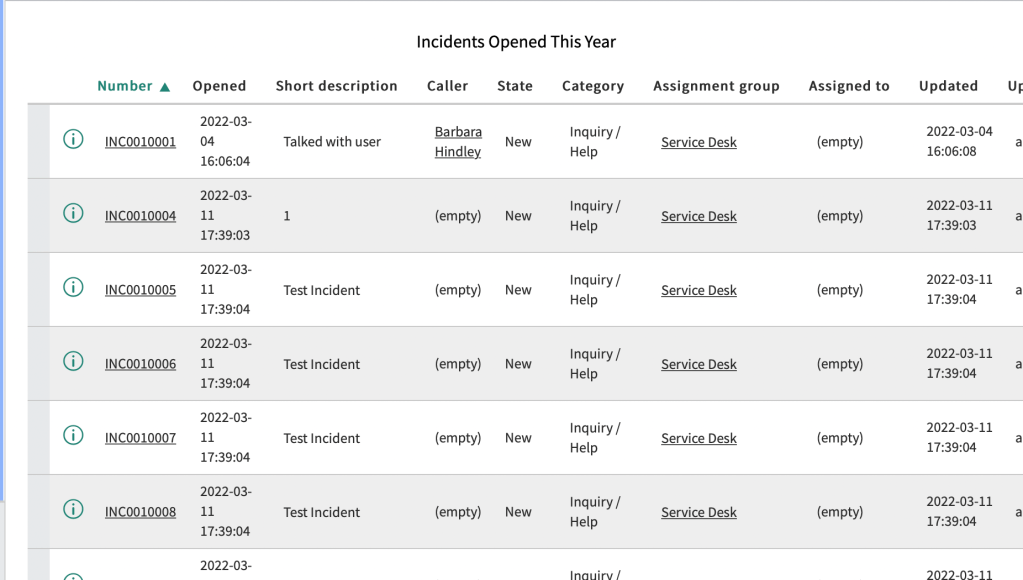
In this post, I will show you how to create your first ServiceNow report.
In the filter Navigator, search for reports and click Create New

Give your report a name, select “Table” and the Source type, and then select the ServiceNow table in which you want to query.
In the example, I will query the Incident Table

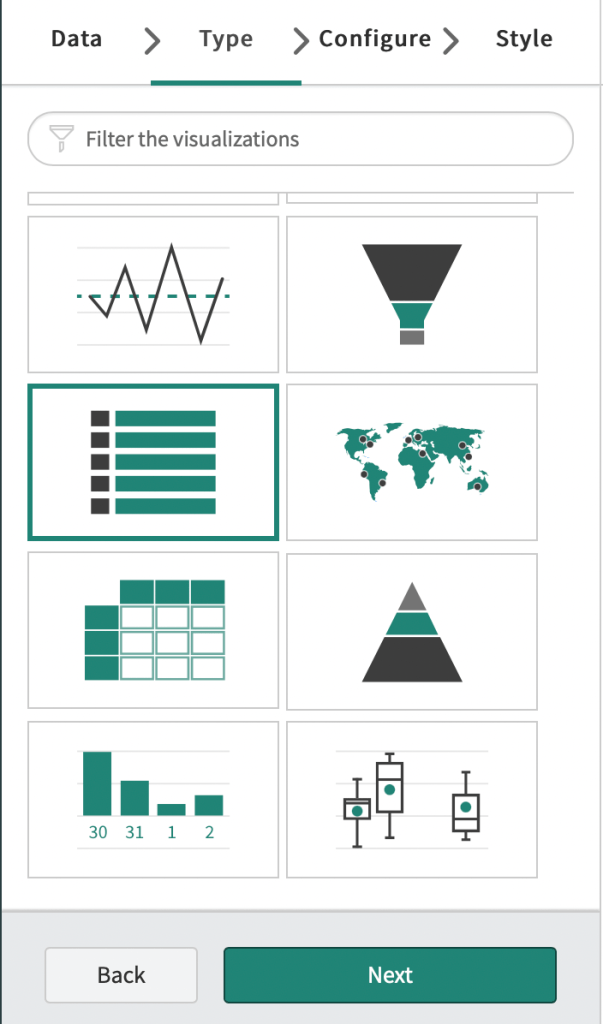
Select the Report type. In this example, I am just choosing the “List” type, but there are all sorts of visualizations to choose from.
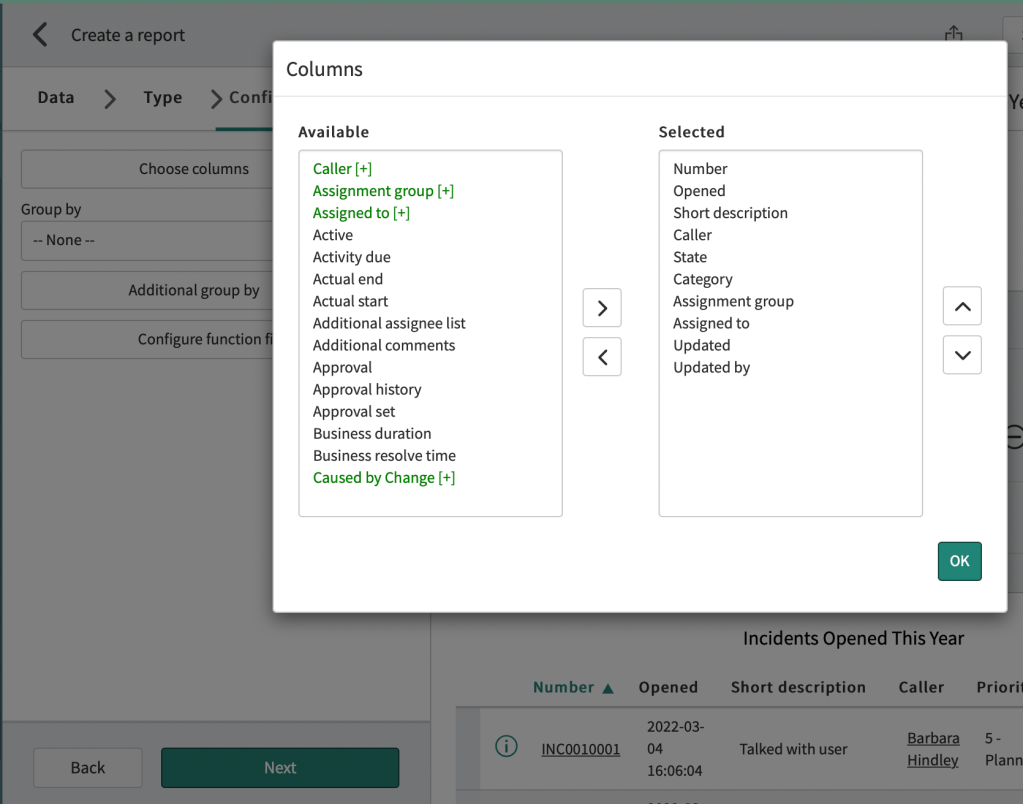
Next, go into the Configure Tab and click Choose columns to select which fields to display in the report
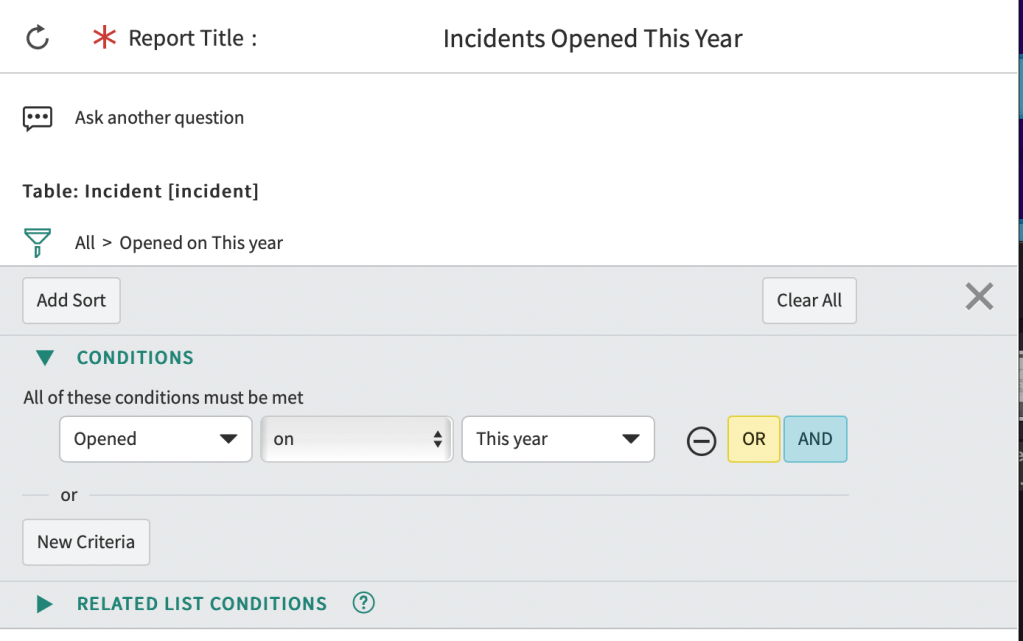
Next, add your filter. I am adding a filter for Incidents Opened on This Year.
When adding filters, remember first you choose the field, then the operator, and then the value
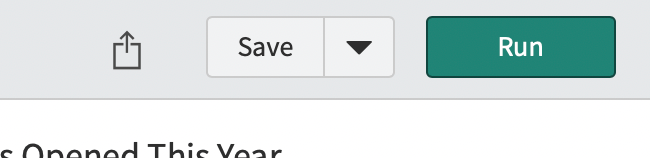
Lastly, click Run and then Save your Report
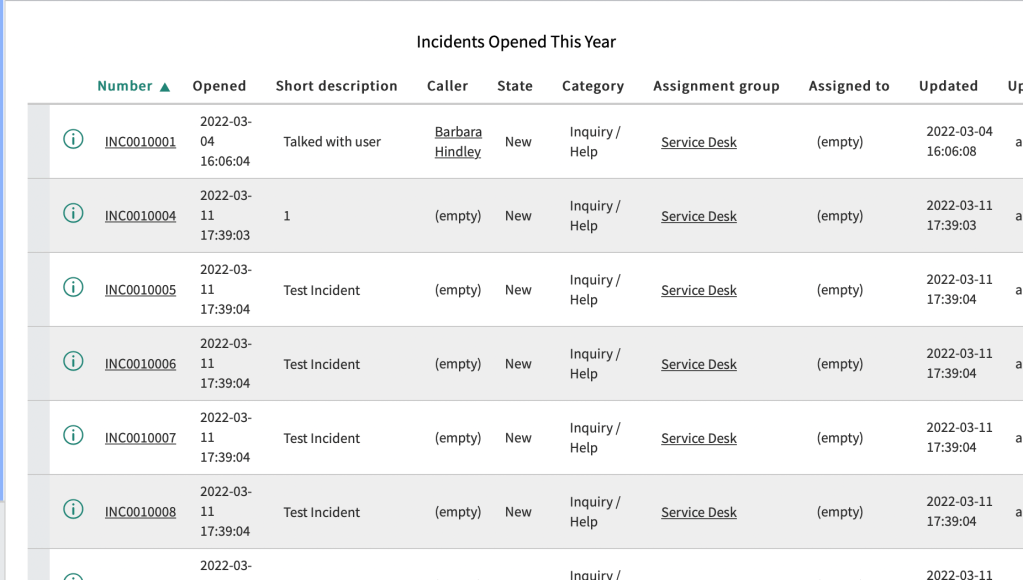
Congrats, you created your first report!
In my next post, I will show you how to export the report to Excel.
Here is the link to ServiceNow’s official documentation for create a report.
 mySNstuff.com
Leave a comment